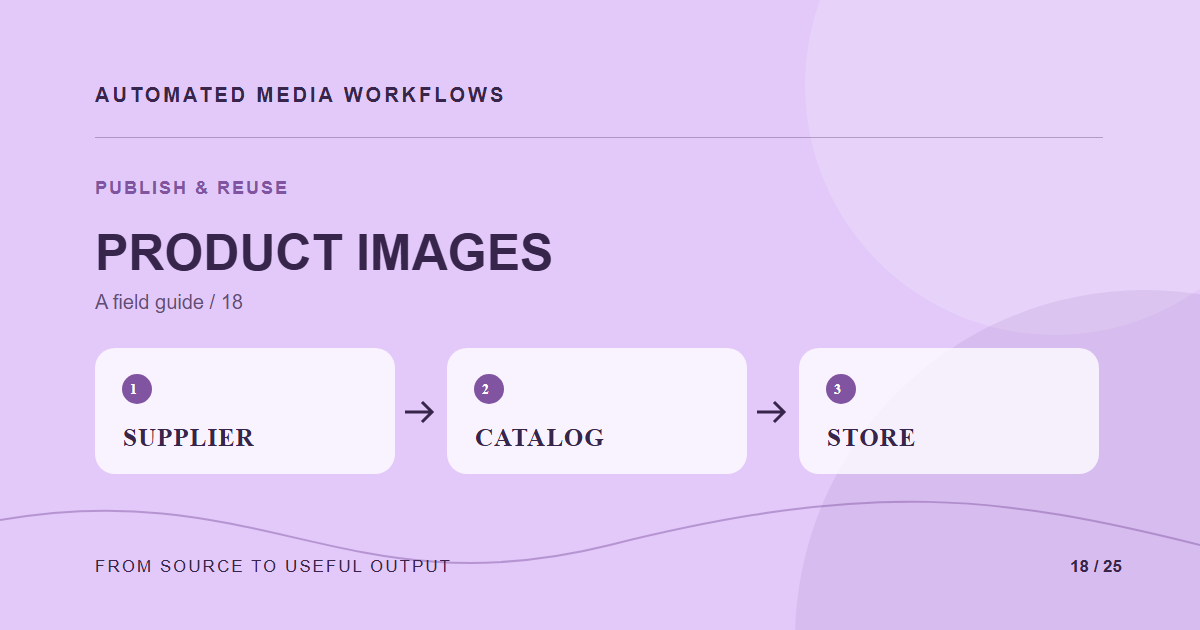
A product image workflow links a supplier file to the correct product, checks whether it meets quality rules, and creates the views the storefront needs. The product identifier is the anchor. A filename that happens to resemble a SKU is a useful clue, not sufficient proof.
Validate the association
At intake, match the asset to a product and variant using an explicit identifier or a reviewed mapping. Flag ambiguous matches. Record whether the image is a hero, detail, swatch, or packaging view. Preserve supplier source and rights information so teams can trace a disputed image later.
Normalize without hiding defects
Generate storefront sizes and formats, but do not automatically blur a low-resolution source into apparent compliance. Check minimum useful resolution, orientation, background policy, and color fidelity. A transparent product image may need different treatment from a lifestyle photo.
Control publish order
Do not replace the live product hero until the new file and its derivatives pass review. Group related variants so a partial update does not show a new color on one card and an old color on the detail page. Keep the previous approved set available for rollback.
Inspect the storefront
Test a listing card, product detail, zoom view, and mobile layout. Confirm the correct variant appears, the crop preserves the product, and responsive delivery does not force a huge source file into a small card.
A concrete example
A supplier sends five angles for one shoe in three colors. Product and variant IDs map the files, while role metadata marks front, side, and detail views. The workflow publishes a complete approved set for the blue variant rather than mixing one new blue image with old red imagery.
Related reading
- Media Workflow Automation: A Practical Starting Guide
- Repurpose One Approved Asset Across Social Channels
- Plan CDN Cache Invalidation for Media Replacements
Primary reference
The MDN responsive images guide provides the underlying technical reference for this workflow.